Set up your Salesforce app
The full walkthrough for creating the External Client App in Salesforce and copying its credentials into Aijency.
Salesforce is the one integration you connect using your own app rather than a single click. You create an External Client App inside your Salesforce org, turn on OAuth with two scopes, copy the Consumer Key and Consumer Secret into Aijency, then select Connect. You need System Administrator rights, or any role that can customise applications and manage connected apps.
This is the walkthrough your dashboard links to from the credentials screen. Work through it once, and your Salesforce is connected from then on.
If you want to know what your Aijent actually writes into Salesforce, that is on Connect Salesforce instead.
Before you begin
- Who can do this: a System Administrator, or any role with Customize Application and Manage Connected Apps.
- What you are creating: an External Client App inside your own Salesforce org. It lives in your org, you own it, and you can revoke it at any time.
- What you will need afterwards: two values, a Consumer Key and a Consumer Secret, which you paste into Aijency.
Why this one is not a single click
Every other CRM connects through an app Aijency has published. Salesforce is connected through an app you create in your own org, which is why it takes longer and why your dashboard labels it a beta.
Step 1. Open External Client App Manager
- Log in to your Salesforce org.
- Select the gear icon at the top right, then Setup.
- In the Quick Find box at the top left of Setup, type External Client Apps.
- Select External Client App Manager.
Step 2. Create the app
- Select New External Client App at the top right.
- Fill in the basic details:
- External Client App Name:
Aijent - API Name:
Aijent, which fills in on its own - Contact Email: your Salesforce admin email
- Distribution State:
Local
- External Client App Name:
- Select Create.
Distribution State must be Local. That keeps the app inside your org rather than publishing it anywhere.
Step 3. Configure the Settings tab
On the External Client App page, open the Settings tab.
- Find OAuth Settings and tick Enable OAuth.
- For Callback URL, paste this exactly:
https://app.aijency.ai/api/auth/salesforce/callback- Under OAuth Scopes, add both of these:
- Manage user data via APIs (
api) - Perform requests at any time (
refresh_token,offline_access)
- Manage user data via APIs (
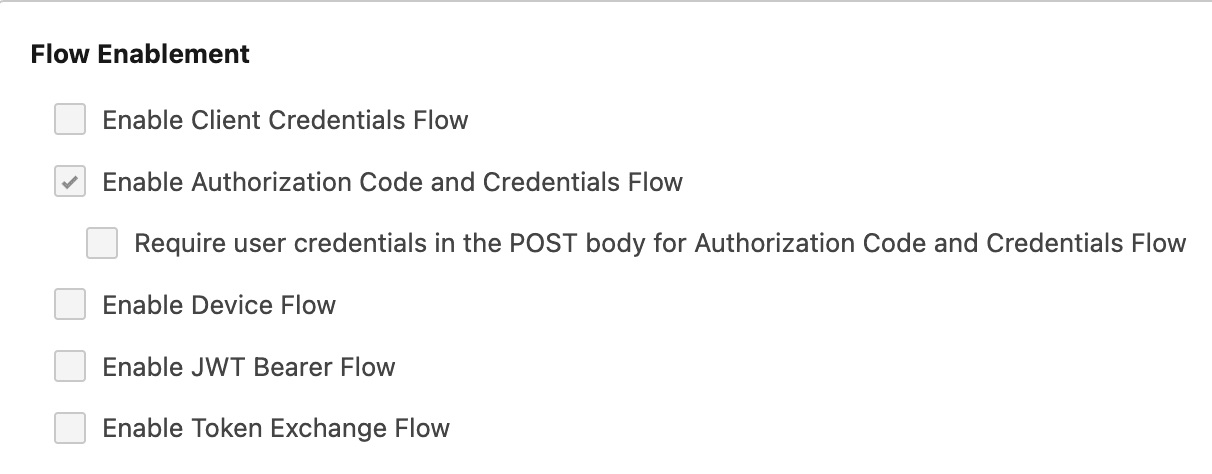
- In the Flow Enablement section, tick the boxes shown below.
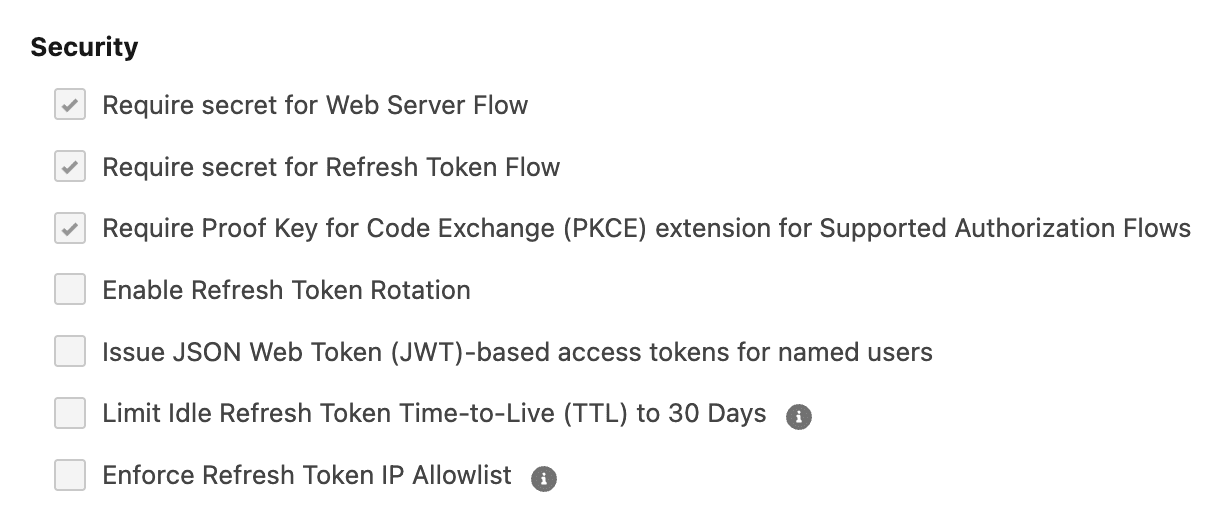
- In the Security section, tick the boxes shown below.
- Select Save.
The Callback URL has to match exactly
No trailing slash, no typos. A single character out and Salesforce refuses the
connection with a redirect_uri_mismatch error.
Step 4. Copy the Consumer Key and Consumer Secret
- Still in OAuth Settings, select the Consumer Key and Secret button.
- Salesforce emails you a verification code. Check your email and paste it back.
- You land on a screen like this one.
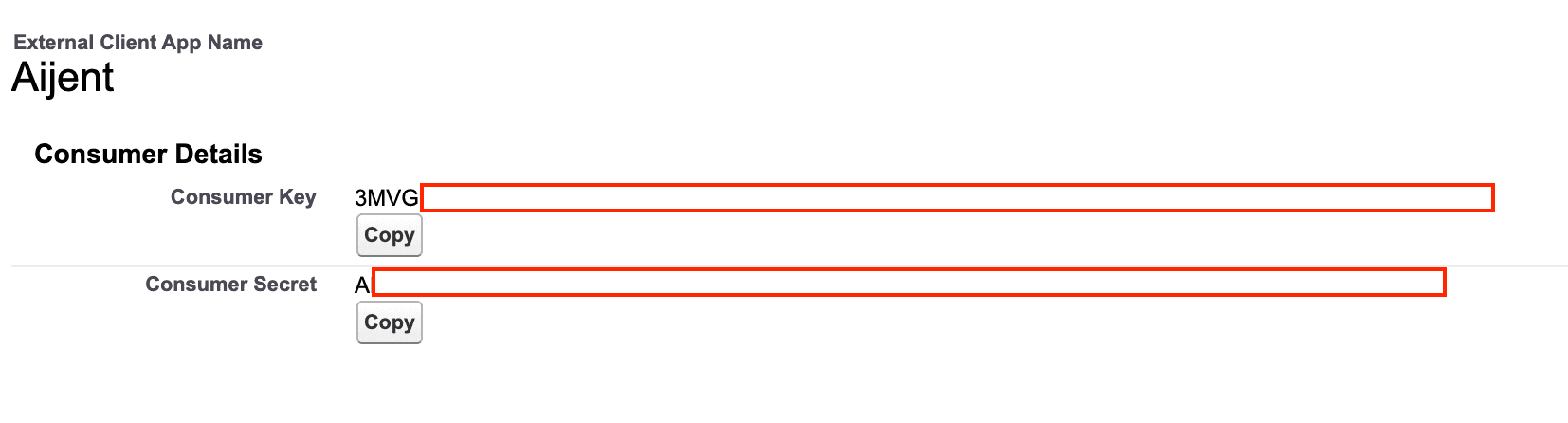
- Copy both values somewhere safe:
- Consumer Key, which starts with
3MVG9 - Consumer Secret, a long random string
- Consumer Key, which starts with
Step 5. Adjust the Policies tab
Open the Policies tab at the top left. Only one change is needed.
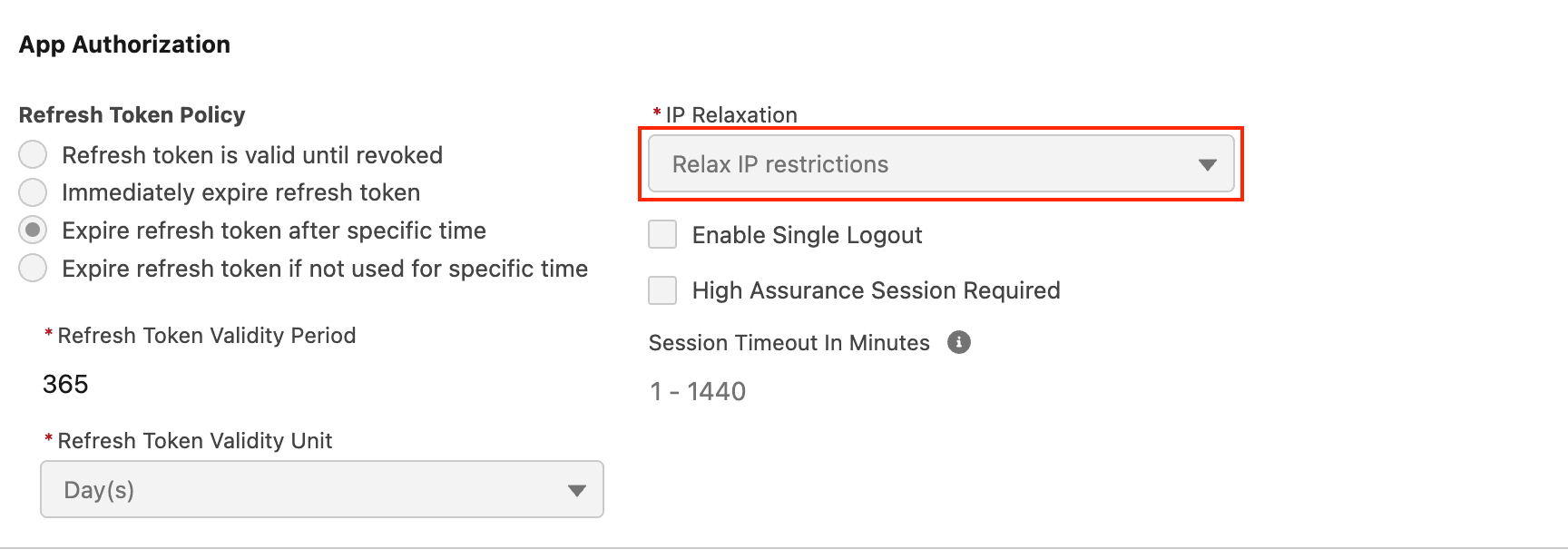
- In the App Authorization section, find IP Relaxation.
- Change it to match the screenshot below.
- Select Save.
Step 6. Copy your My Domain URL, if you need it
Most production orgs do not need this, so skip it unless the connection fails later.
If you do need it, go to Setup, then Quick Find, then My Domain, and copy the
Current My Domain URL. It looks like https://yourcompany.my.salesforce.com.
Step 7. Paste the credentials into Aijency
- In your dashboard, go to Integrations.
- In the CRM dropdown, choose Salesforce.
- Select Add credentials.
- Paste your Consumer Key, your Consumer Secret, and your My Domain URL if you have one.
- Select Save credentials.
Step 8. Select Connect
The Salesforce card now shows a Connect button. Selecting it opens a Salesforce window.
Read the next section before you approve anything.
The orange warning you will see
The first time you connect, Salesforce shows an Allow Access? screen with a large orange security warning across the top. It looks alarming. It is expected, and it appears for every app created this way.
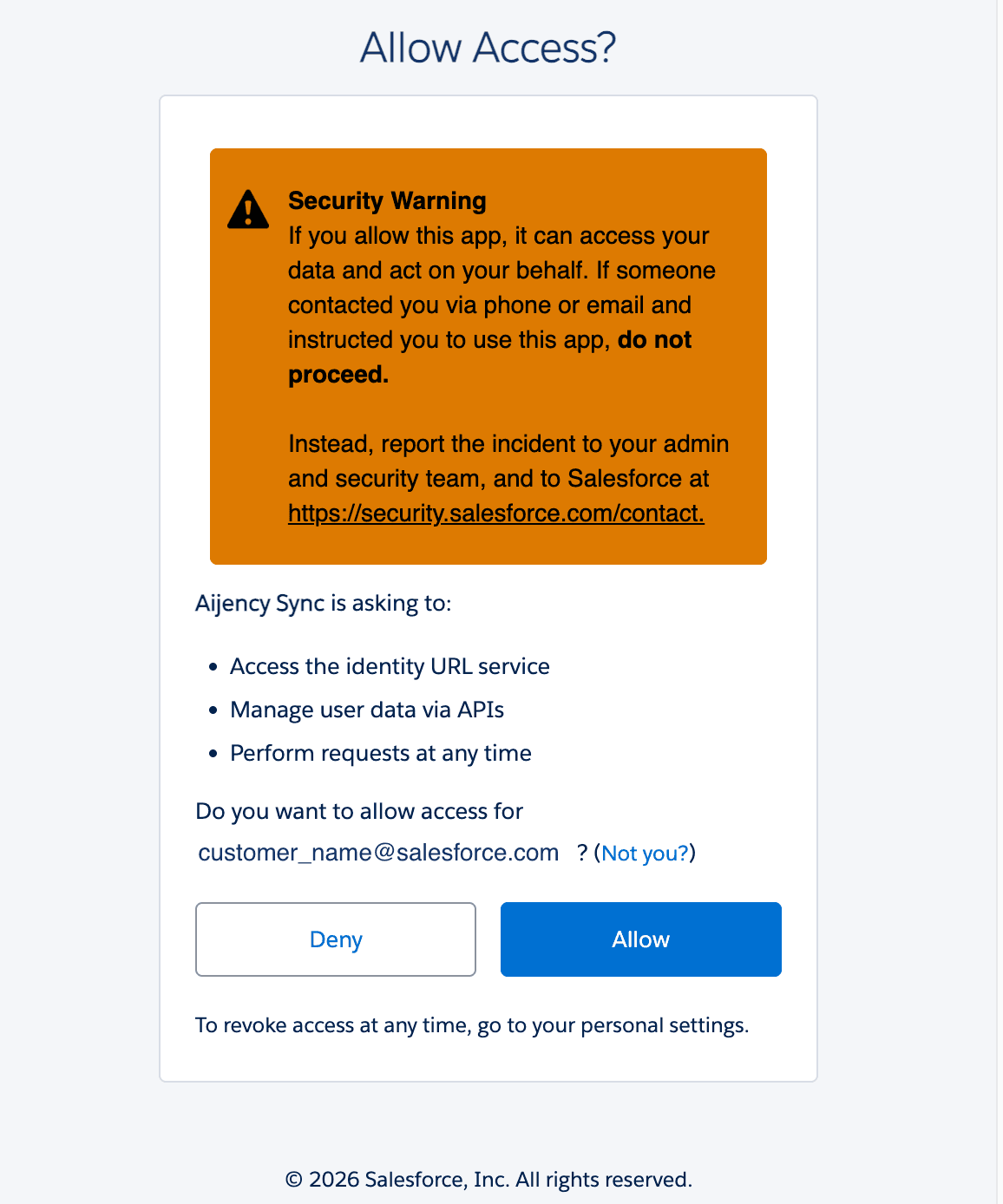
What the warning is actually asking. It tells you not to authorise an app if somebody contacted you by phone or email asking you to do it. You started this yourself inside your own dashboard, so it does not apply to you.
What you are approving. Underneath the warning, Salesforce lists what Aijency is asking for:
| Permission | What it means |
|---|---|
| Access the identity URL service | Confirms which user is connecting |
| Manage user data via APIs | Lets your Aijent create and update contacts, accounts, opportunities and tasks |
| Perform requests at any time | Lets the connection renew itself, so you are not reconnecting every hour |
Select Allow. The window closes and the card in your dashboard flips to connected.
If something goes wrong
redirect_uri_mismatch
Your Callback URL does not match what Aijency sends. Go back to step 3 and check
it character by character. It must be exactly
https://app.aijency.ai/api/auth/salesforce/callback, with no trailing slash.
OAUTH_APP_BLOCKED or missing_session
Your org enforces strict My Domain. Go back to step 6, copy your My Domain URL, paste it into the My Domain URL field alongside your credentials, save, then try Connect again.
OAUTH_EC_APP_NOT_FOUND
You approved against a different Salesforce org from the one where you created the app. This usually happens when your browser still has a session open for another org. Sign out of every Salesforce org, then try Connect again.
It connects, but nothing appears in Salesforce
Connecting only sets up the access. Records are written after a real conversation finishes through your Aijent. Have a test conversation, then look for the contact. If a meeting was booked it syncs straight away. If not, it can take around 25 minutes, because those are collected on a schedule that waits for the conversation to go quiet.
If it is still missing, get in touch with the date and the email address you used.
Questions people ask
Who can see my Consumer Key and Consumer Secret?
Nobody. They are encrypted before they are stored, decrypted only on the server at the moment they are used, and never written into logs. They are never shown back to you or to anyone at Aijency.
How do I revoke access?
Either of these works, and both take effect immediately:
- In Aijency: Integrations, then the Salesforce card, then Disconnect.
- In Salesforce: Setup, then External Client App Manager, then Aijent, then Revoke.
Can I rotate the Consumer Secret?
Yes. Regenerate it in Salesforce, then come back to Integrations and choose Update credentials to paste the new one. The existing connection keeps working until it next renews itself, and it picks up the new secret from that point.
Does Aijency need a Salesforce licence seat?
The account you connect with does. It can be a standard user, an integration user or a system administrator, as long as it is active and able to log in. A dedicated integration user is worth setting up, because it keeps the audit trail in Salesforce clean.